

RDP: Forensic analysis of Windows Remote Desktop Protocol artifacts
By Jeff Rutherford
Key takeaways:
- Remote Desktop Protocol (RDP) leaves evidence on both sides of a connection. The source system can show where a user tried to connect and which account they may have used. The destination can show who connected, where the connection came from, and when the session started and ended.
- No single RDP artifact tells the whole story. Some artifacts only show that a connection was attempted, while others show that a session became interactive. Conclusions are strongest when multiple artifacts point to the same event.
- Treat the RDP session as an investigative window. RDP evidence establishes access and a timeframe. Execution, file system, network, and data movement artifacts, including possible file transfer through drive or clipboard redirection, show what happened during that window.
Remote Desktop Protocol (RDP) can be one of the most valuable sources of evidence in a Windows digital forensic investigation.
RDP is commonly used for legitimate system administration, remote work, troubleshooting, and access to servers and workstations. The same functionality also makes it valuable to threat actors. Once an attacker obtains credentials or compromises a system, RDP can provide an interactive desktop that allows the attacker to move between systems, access files, execute tools, transfer data, establish persistence, or carry out ransomware deployment.
For the digital forensic examiner, this creates an important opportunity. Windows can leave evidence of RDP activity on both sides of a connection. The system initiating the connection may contain evidence identifying where a user connected, while the destination system may document who connected, where the connection originated, when a session began, and when it disconnected or ended.
Correlated with other Windows evidence, these artifacts can do more than confirm RDP was used. They can help reconstruct how someone moved through an environment and what happened during the remote session.
This post explores the RDP artifacts found on the source and destination systems, what each one can and can’t prove, and how to correlate them into a timeline of remote activity. It also looks at how these artifacts support ransomware, data breach, insider threat, and intellectual property theft investigations.
What is Remote Desktop Protocol (RDP)?
Remote Desktop Protocol, commonly abbreviated RDP, is Microsoft’s protocol for providing interactive remote access to a Windows system.
A typical RDP connection involves two roles:
- RDP client: The computer initiating the connection.
- RDP host or destination: The computer being remotely accessed.
On Windows, the traditional built-in Remote Desktop Connection client is mstsc.exe. Rather than simply transferring commands between computers, RDP can provide the remote user with an interactive Windows desktop. The user can operate applications, browse files, execute programs, and interact with the destination computer much as if physically seated in front of it.
RDP also supports several forms of resource redirection. Depending on the configuration, a remote session may provide access to resources on the originating computer, including local drives, the clipboard, printers, cameras, smart cards, and other devices. Microsoft specifically documents file system and clipboard redirection as capabilities of RDP.
Those capabilities are particularly important during an investigation. An RDP session may be more than a remote login.
It can potentially provide a path for:
- Moving files between systems
- Accessing files on a user’s local computer
- Copying text or files through the clipboard
- Executing administrative tools
- Accessing sensitive applications
- Moving laterally between computers
- Deploying malware or ransomware
- Exfiltrating information
- Conducting hands-on-keyboard activity
- Remote printing of sensitive material
This is why RDP evidence should rarely be examined in isolation.
Investigating the RDP source
The source may help answer:
- Did this user attempt to connect using RDP?
- What computer or IP address did they connect to?
- What username may have been used?
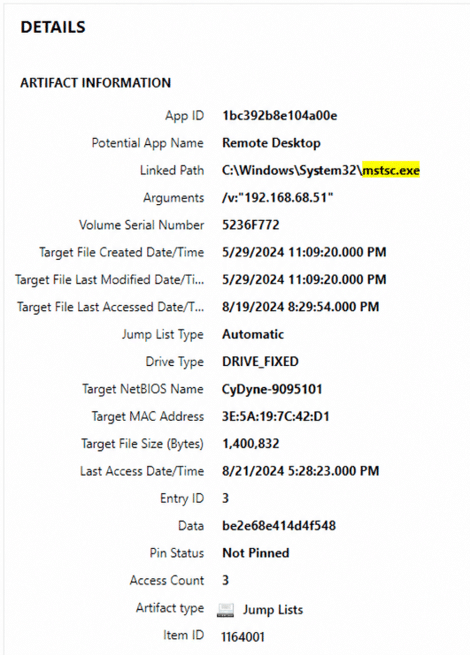
- Was mstsc.exe executed?
In this example, we can see the username that was utilized and the destination IP (LAN).
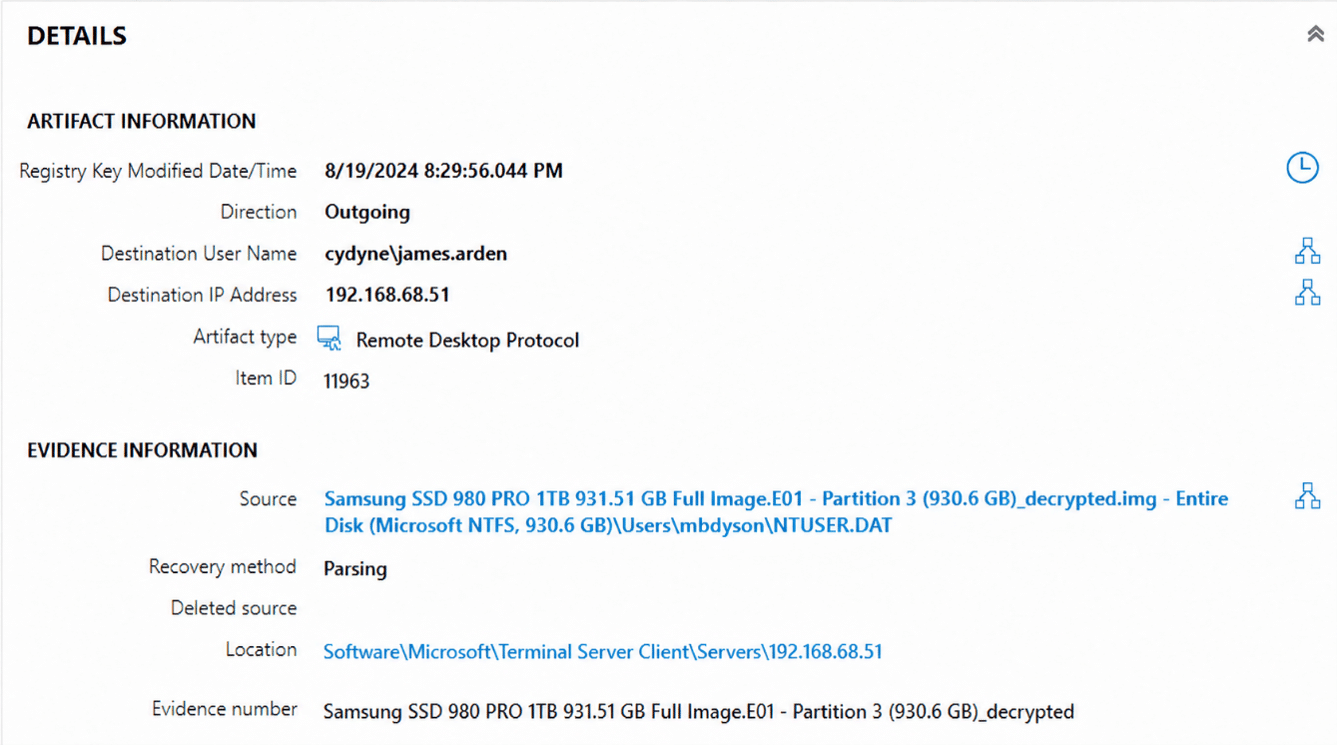
If we look at additional artifacts, like Jump Lists, we can see additional details:
Here we see one artifact from the incoming connection:
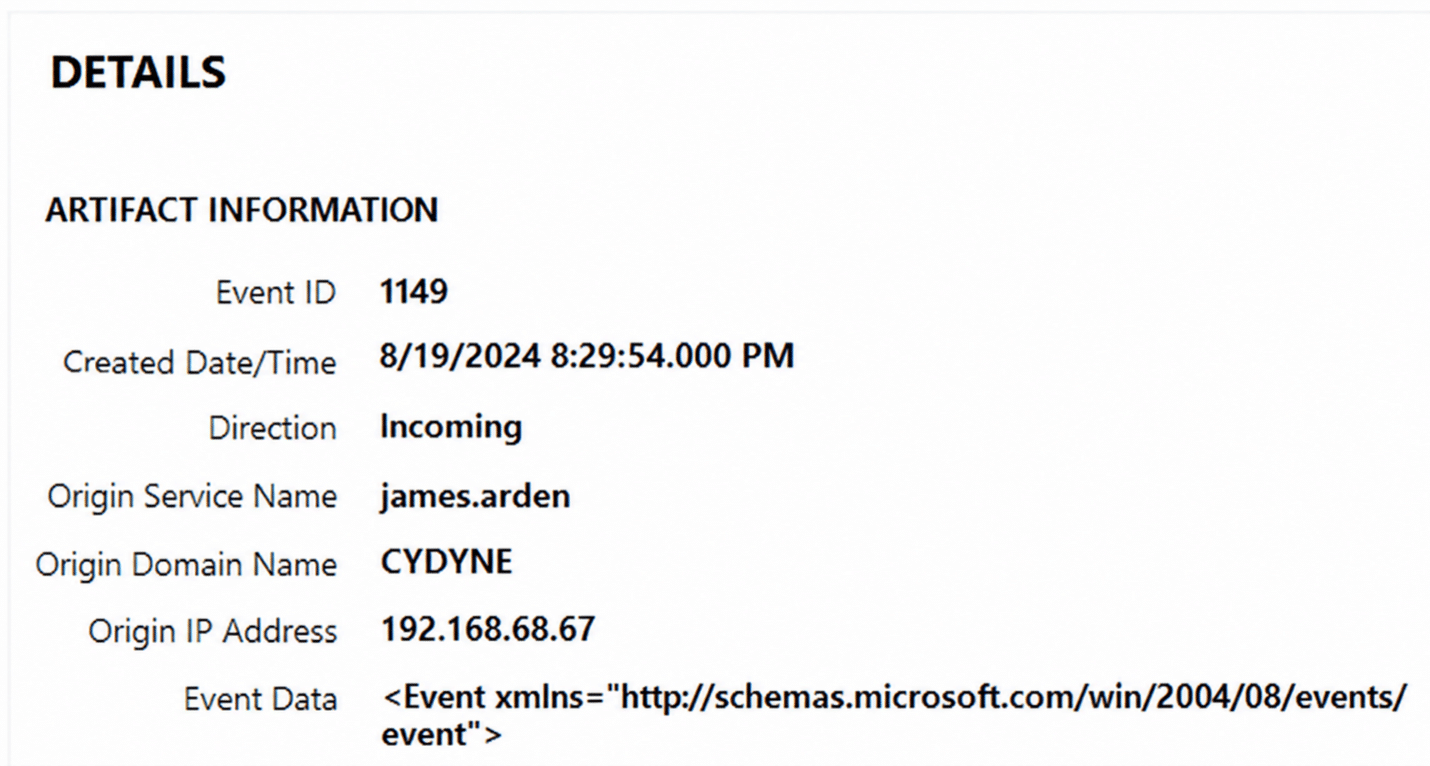
The destination may help answer:
- Who connected?
- What IP address did the connection originate from?
- Was authentication successful?
- Was an interactive session created?
- When did the session start?
- When was it disconnected?
When possible, the strongest reconstruction comes from examining both systems.
How RDP artifacts are generated
RDP artifacts aren’t created by one single Windows component. Instead, several components participate in the connection and session lifecycle.
A simplified connection might look like:
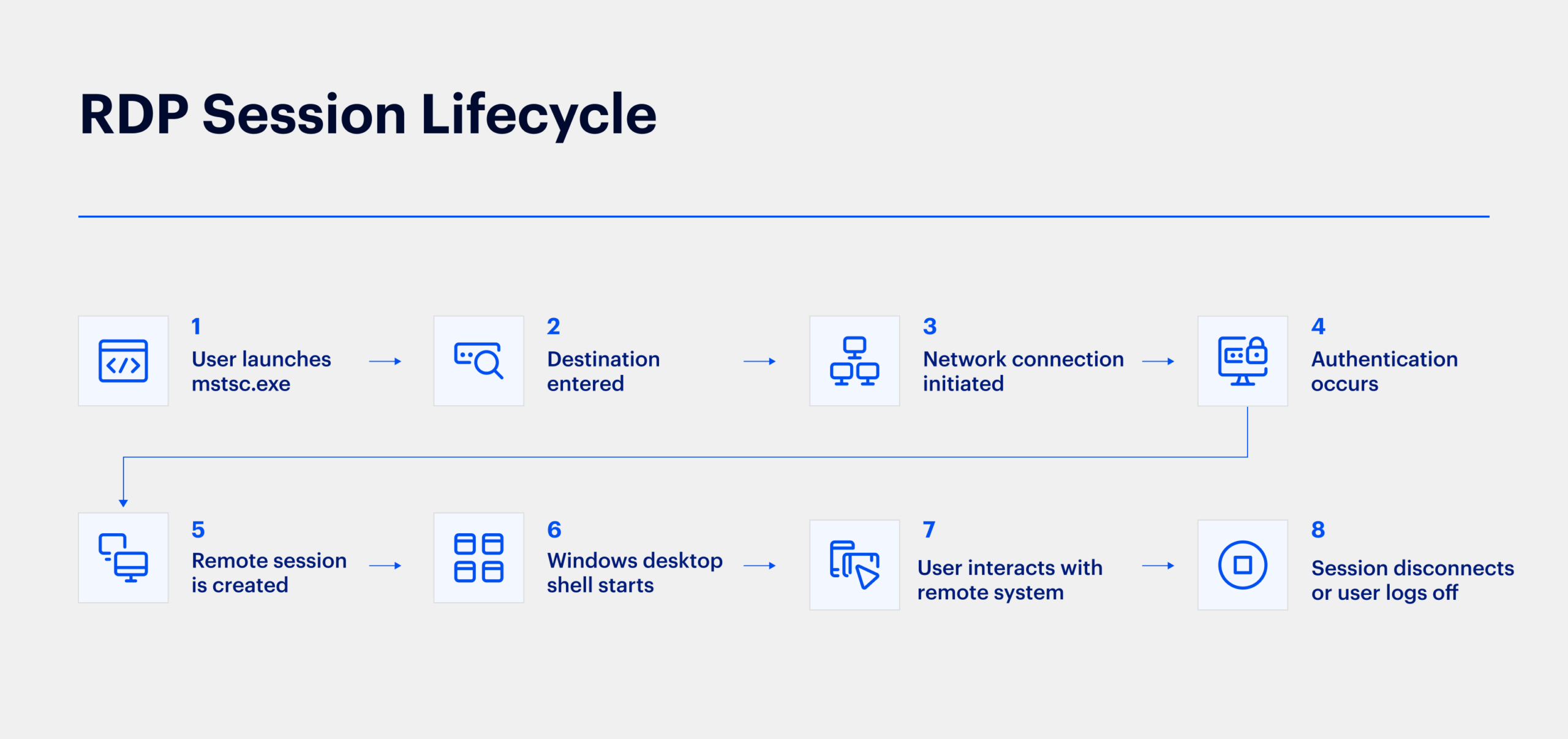
Each stage of the RDP session lifecycle can create different forensic evidence. Some artifacts document an attempted connection, while others provide much stronger evidence that the remote session actually became interactive. That distinction is critical.
A hostname appearing in RDP history does not necessarily mean the user successfully authenticated. Likewise, an initial connection event should not automatically be interpreted as proof that someone received an interactive Windows desktop.
Digital forensic conclusions become stronger when multiple artifacts describe the same event.
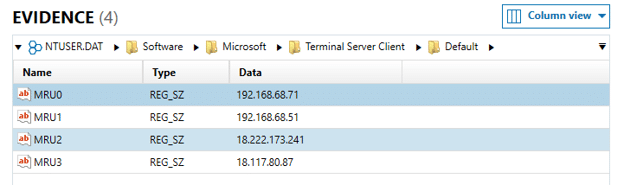
From a forensic perspective, these registry locations can become a map of potential outbound RDP activity associated with a Windows user profile.
An important limitation is that these artifacts should not automatically be interpreted as proof that authentication succeeded. They identify destinations associated with the RDP client and should be correlated with additional evidence.
TerminalServices-RDPClient event logs
The source system can also contain a dedicated RDP client event log.
A common location is:
Microsoft-Windows-TerminalServices-RDPClient/OperationalThe underlying EVTX file can typically be found beneath:
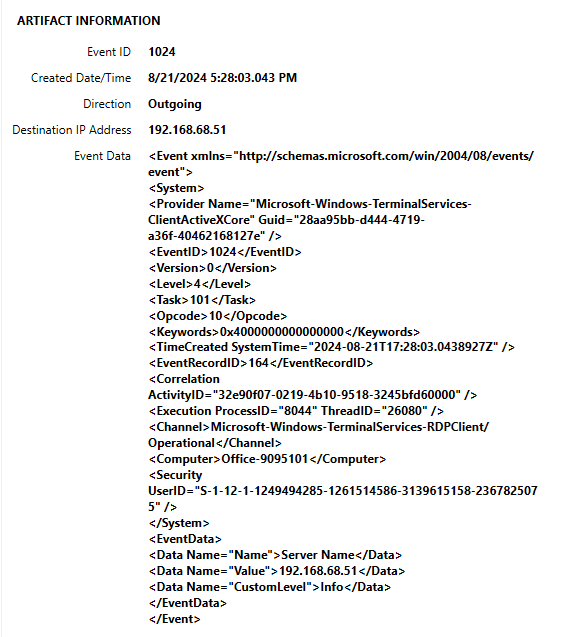
C:\Windows\System32\winevt\Logs\One particularly useful event is Event ID 1024, which records the RDP client attempting to connect to a server. It can contain information identifying the destination server and the user SID associated with the connection attempt.
Other RDP client events can provide additional information surrounding the connection lifecycle, including successful connection activity and disconnects.
Investigators should therefore examine the entire group of events surrounding an RDP connection rather than searching for one Event ID in isolation.
MSTSC execution evidence
Determining that the Windows Remote Desktop client was executed can provide additional context. The executable used by Microsoft’s traditional Remote Desktop Connection client is:
mstsc.exeDepending on the Windows configuration and investigative timeframe, execution evidence may appear in artifacts including:
- Prefetch
- UserAssist
- Amcache
- ShimCache
- SRUM
- Windows event logs
- EDR telemetry
- Process creation auditing
For example, Prefetch evidence for MSTSC.EXE can support a finding that the application executed.
However, execution of mstsc.exe alone does not establish:
- Which computer was accessed
- Whether authentication succeeded
- What the user did remotely
It becomes significantly more useful when combined with RDP registry history and event logs.
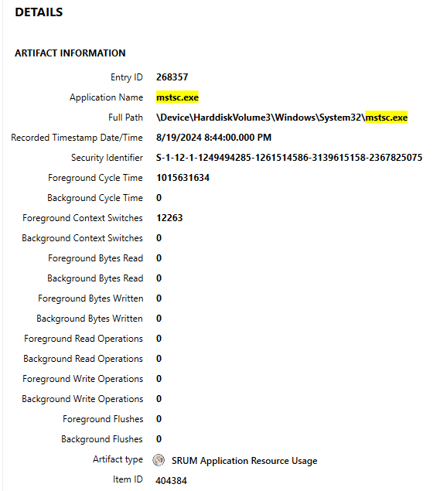
From the SRUM artifact for an RDP session:
RDP bitmap cache
One of the more interesting RDP artifacts exists because Windows attempts to improve the performance of the remote desktop experience. Instead of repeatedly retransmitting every portion of the screen, RDP can cache graphical information on the client computer.
Depending on the Windows version and RDP implementation, cache files may be found beneath locations such as:
C:\Users\<username>\AppData\Local\Microsoft\Terminal Server Client\Cache\File names may include patterns such as:
bcache*.bmcor
Cache0000.binThese files can contain small fragments of the remote desktop display. This can occasionally provide remarkable evidence.
Recovered fragments might show portions of:
- File Explorer
- Application windows
- Command prompts
- Documents
- Desktop icons
- Administrative tools
- Web applications
However, bitmap cache analysis has important limitations. The cache is not a recording of the user’s session. It contains graphical fragments used by the RDP client for performance optimization. Images may be incomplete, overwritten, duplicated, or lack sufficient context. For that reason, bitmap cache evidence is generally most useful as corroborating visual evidence rather than as the sole basis for determining what occurred.
Investigating the RDP destination
The destination computer often contains the most valuable evidence for determining whether a remote session actually occurred. Several Windows event logs can contribute to that reconstruction.
Security Event ID 4624: Successful logon
Windows Security Event ID 4624 records the creation of a successful logon session.
A 4624 event may provide information including:
- Username
- Domain
- Logon ID
- Authentication package
- Source network address
- Source port
- Process information
- Elevated token information, depending on event version and configuration
Failed RDP logons
Failed authentication attempts can also be significant. Security Event 4625 records failed logon attempts.
During an intrusion investigation, repeated failed attempts followed by a successful RemoteInteractive login may indicate:
- Password guessing
- Credential spraying
- Mistyped credentials
- Use of newly acquired credentials
- Attempts to access multiple systems
Context is important. Administrators and legitimate users mistype passwords too.
A series of failed attempts from an unusual IP address followed shortly afterward by a successful RDP session, however, may deserve substantially more attention.
TerminalServices-RemoteConnectionManager
Another valuable log is:
Microsoft-Windows-TerminalServices-RemoteConnectionManager/OperationalOne commonly examined event is Event ID 1149. Depending on the Windows version and authentication configuration, Event 1149 can provide information related to an inbound RDP connection including the username and originating network address.
It’s important not to treat Event 1149 by itself as absolute proof that a complete interactive desktop session occurred.
A stronger approach is to correlate it with:
- Security 4624 Type 10
- LocalSessionManager Event 21
- Other session events
This illustrates a broader rule of RDP forensics: Connection, authentication, session creation, and user interaction are related but separate events.
TerminalServices-LocalSessionManager
The following log can be extremely useful for reconstructing the actual RDP session lifecycle:
Microsoft-Windows-TerminalServices-LocalSessionManager/OperationalSeveral events may be particularly valuable:
- Event 21: Session logon. Indicates that a Remote Desktop Services session logon succeeded.
- Event 22: Shell start. Indicates the user’s session shell started. This can be particularly useful because it helps move the interpretation beyond authentication toward an interactive user session.
- Event 23: Session logoff. Indicates a session successfully logged off.
- Event 24: Session disconnect. Indicates a session was disconnected. Disconnecting is not necessarily the same thing as logging off. A disconnected RDP session may remain alive on the destination system.
- Event 25: Session reconnection. Indicates that a disconnected session was reconnected.
Additional events such as 39 and 40 can provide information concerning disconnect behavior and session transitions.
Together, these events can help create something resembling:
10:42 — RDP logon
10:42 — Windows shell starts
11:18 — Session disconnected
13:07 — Session reconnected
13:42 — User logs off
That sequence is far more informative than simply stating that RDP was used.
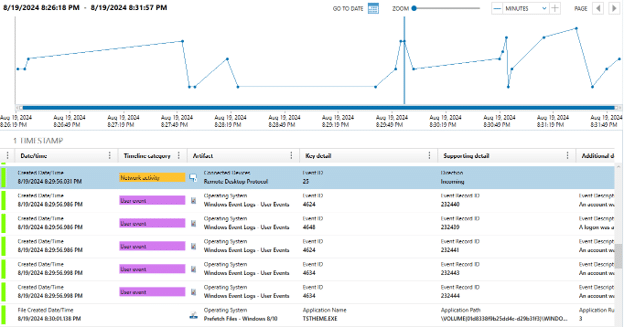
This is where timeline analysis can be so helpful to the case. RDP can be the doorway into a large behavioral timeline:
Cases where RDP artifacts can be valuable
Ransomware investigations
RDP has historically been an important mechanism for hands-on-keyboard activity and lateral movement in a ransomware attack.
An attacker may compromise one endpoint and then use RDP to move to:
- File servers
- Backup servers
- Domain administration systems
- Additional workstations
RDP artifacts can help investigators determine:
- The initial pivot system
- Systems accessed afterward
- Accounts used for lateral movement
- When interactive attacker activity began
- Which systems should receive priority examination
This can be particularly valuable when the attacker later encrypts or destroys evidence on destination systems.
Data breach investigations
During a data breach investigation, RDP artifacts can help establish whether an attacker had interactive access to systems storing sensitive information.
For example, investigators might identify: Compromised workstation → RDP → database server
The RDP connection itself does not prove that data was exfiltrated. But it can establish an investigative window.
The examiner can then focus on activity during that period, including:
- File access
- Database access
- Archive creation
- Cloud uploads
- Browser activity
- SMB transfers
- PowerShell activity
- External storage
- Network connections
RDP provides the context around which additional evidence can be evaluated.
Insider threat investigations
RDP history can also be useful in insider threat investigations. Consider an employee whose normal workstation suddenly contains RDP history showing connections to:
- Another employee’s workstation
- An engineering server
- A financial system
- A privileged administrator workstation
Those connections may be entirely legitimate. But the artifact provides a lead.
Correlating the destination with session timestamps, authentication events, and file access evidence may help determine whether the activity was expected.
Intellectual property (IP) theft
Suppose an employee is suspected of accessing engineering documents shortly before resigning.
RDP evidence might establish that the employee remotely accessed an engineering workstation or server outside their normal workflow.
The examiner could then correlate that RDP session with:
- Recent Files
- Jump Lists
- Shellbags
- LNK files
- Browser activity
- USB artifacts
- Cloud storage
- Archive utilities
- Network shares
The strength of the evidence comes from the combination. RDP may demonstrate access to the system. Other artifacts demonstrate what occurred after access
Lateral movement
RDP is particularly useful when reconstructing lateral movement. Consider the following pattern:
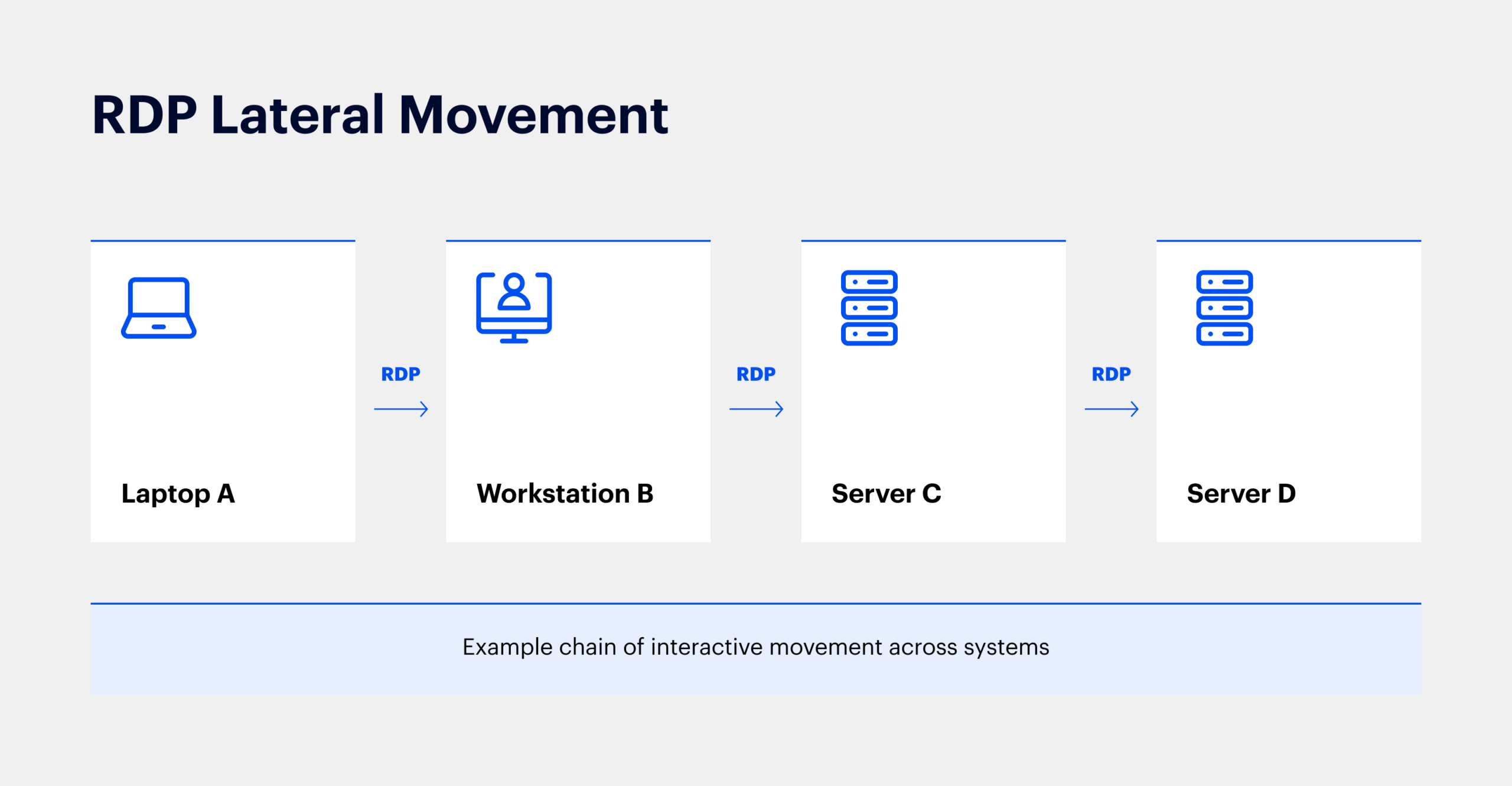
By examining the outbound RDP history on each computer and the inbound session evidence on the destination systems, investigators may be able to reconstruct a chain of interactive movement through the environment.
Source-side RDP artifacts can be especially valuable here because the Terminal Server Client registry history may reveal destinations that investigators had not yet identified.
A compromised computer may therefore serve as both a victim and a pivot point.
File transfer through RDP
Another issue investigators should consider is file movement. RDP supports several forms of resource redirection, including clipboard and drive redirection. Depending on the system’s policy configuration, local client drives may be exposed within the remote session. Microsoft documents redirected drives as allowing the remote computer to read from and write to drives located on the RDP client.
This means files may potentially move: client → remote system or remote system →client
without using a traditional SMB share, FTP client, or browser download, which can complicate investigations.
Evidence of an RDP session should therefore prompt investigators to consider whether resource redirection was available during the session.
Look for corroborating evidence such as:
- File creation timestamps
- $MFT
- $UsnJrnl
- LNK files
- Recent Files
- Jump Lists
- EDR file events
- Sysmon file creation events
- Archive creation
- Unusual filesystem paths
Execution of rdpclip.exe, which supports clipboard redirection during RDP sessions, may also provide useful contextual evidence, although its presence alone does not prove that a file or specific clipboard content was transferred. Magnet Forensics has documented Prefetch, ShimCache, and SRUM as possible sources of RDP-related execution evidence including rdpclip.exe.
RDP investigation tips
A few quick checks can make RDP evidence much more useful:
- Pivot on the source IP: Identify which endpoint owned the address at the relevant time using DHCP, EDR, VPN, firewall, or asset records, then examine that system for client-side RDP artifacts.
- Follow the Logon ID: In Security Event 4624, the Logon ID can help correlate activity tied to the same Windows logon session.
- Differentiate disconnect from logoff: A disconnected RDP session may continue running and can later be reconnected. LocalSessionManager events can help distinguish the two.
- Look for chained RDP activity: A compromised system may have been used as a pivot to connect to additional hosts.
- Review more than Security.evtx: Dedicated Terminal Services logs may preserve connection, session, disconnect, and reconnect evidence even when the main Security log is incomplete or cleared.
- Validate logging before relying on absence: Missing events may reflect audit settings, log rollover, system configuration, or log clearing rather than proof that the activity did not occur.
Build a multi-artifact RDP timeline
No single RDP artifact should carry the entire conclusion. Instead, consider combining:
| Question | Potential evidence |
|---|---|
| Was the RDP client launched? | Prefetch, UserAssist, process logs |
| Where was the user connecting? | Terminal Server Client registry, RDPClient logs |
| Which account was used? | UsernameHint, Security logs, RDP events |
| Where did the session originate? | Source IP in destination logs |
| Did authentication succeed? | Security 4624 |
| Was an interactive session created? | LocalSessionManager events |
| Was the desktop shell started? | LocalSessionManager Event 22 |
| When did the session disconnect? | Events 24, 40, 4779 |
| Was the session resumed? | Events 25, 4778 |
| What happened during the session? | Process, filesystem, registry, network, EDR and application artifacts |
| Were files potentially transferred? | File-system evidence, redirected-drive evidence, rdpclip context |
| What may have appeared on screen? | RDP bitmap cache |
The objective is to reconstruct the behavior surrounding the remote session, rather than to find one definitive “RDP artifact”.
What RDP artifacts don’t prove
Digital forensic examiners should also be careful about over-interpreting RDP evidence.
Consider the following examples:
RDP registry history
Can support that a destination was entered or associated with the client. It doesn’t necessarily prove a successful session occurred.
4624 Logon Type 10
Provides strong evidence of a successful RemoteInteractive logon. It does not by itself establish everything the person did afterward.
RDP bitmap cache
May show graphical fragments displayed through an RDP session. It doesn’t necessarily establish who performed every visible action.
rdpclip.exe execution
Can support the presence of RDP clipboard functionality. It doesn’t prove that a particular file was copied.
Digital forensic conclusions should describe what an artifact supports rather than extending the artifact beyond what it can demonstrate.
RDP as part of the larger Windows evidence picture
Remote Desktop evidence becomes considerably more powerful when viewed alongside other key Windows artifacts.
Following an RDP session, investigators should consider examining:
Execution artifacts
- Prefetch
- UserAssist
- Amcache
- ShimCache
- BAM/DAM
- SRUM
File system activity
- $MFT
- $UsnJrnl
- LNK files
- Jump Lists
- Recent Files
- Shellbags
Authentication
- Security event logs
- Domain controller logs
- Kerberos events
- NTLM authentication
Network activity
- Firewall logs
- DNS
- VPN
- Proxy
- EDR telemetry
- Sysmon
Command execution
- PowerShell
- Windows Terminal
- Command Prompt
- Scheduled Tasks
- Services
- WMI
Data movement
- SMB
- USB
- Cloud storage
- Browser uploads
- RDP redirection
This allows the investigator to move from identifying remote access to understanding what occurred because of that access.
Final thoughts
Remote Desktop Protocol is not inherently suspicious. It’s an essential component of legitimate Windows administration and remote work. But because RDP provides interactive access to another computer, it can also become an important part of ransomware, data breach, insider threat, intellectual property theft, unauthorized access, and lateral movement investigations.
The most important forensic lesson is to treat RDP as a sequence of activity rather than a single artifact. This approach helps answer:
- Who connected?
- From where?
- To what system?
- Using which account?
- When did the session begin?
- Did the desktop become interactive?
- When did the user disconnect or log off?
- Did they reconnect?
- What occurred during that window?
Client-side registry history, RDP client event logs, security events, Terminal Services logs, execution artifacts, filesystem evidence, and even bitmap cache data can contribute different pieces to the story.
When those pieces are correlated, RDP artifacts can do much more than prove that remote access occurred. They can help show how someone moved through an environment, identify the systems they touched, establish the timeframe in which they operated, and provide the investigative context needed to determine what happened next.
About the author

Jeff Rutherford, Forensic Consultant at Magnet Forensics, is a retired FBI Supervisory Special Agent with more than twenty years of experience in organized crime, crimes against children, counterterrorism and cybersecurity related investigations. Jeff achieved specialized certification as a Technically Trained Agent and an FBI Certified Digital Forensic Examiner and holds certifications from IACIS (CFCE) and SANS (GCFA). While assigned to the North Texas Regional Computer Forensic Laboratory, Jeff conducted digital forensic examinations for various agencies (state, local, and federal) across North Texas. Jeff also led the FBI Dallas Technical Operations Squad responsible for the capture, processing, and preservation of electronic surveillance evidence.